
Your landing page looks great to you. It looked great to your designer, your co-founder, and your mom. But 42% of visitors may still struggle with it because none of you experience the page the way a first-time visitor with cognitive load, anxiety, or low digital literacy does. This guide walks you through installing PagePerson Insights and running your very first cognitive scan so you can see exactly where comprehension breaks down and conversions leak out.

- Install PagePerson Insights from the Chrome Web Store in under two minutes.
- Open any page on your site, click the extension icon, and run a cognitive scan.
- The scan surfaces specific comprehension barriers, cognitive load issues, and conversion friction that analytics and heatmaps never show you.
- Fix the top findings, re-scan, and watch your conversion rate climb.
Why Cognitive Scans Matter for Conversion
You already track bounce rates, scroll depth, and click-through rates. Those numbers tell you what happens. They never tell you why. A visitor who bounces after 8 seconds on your pricing page might have been confused by your tier names, overwhelmed by a wall of feature comparisons, or simply unable to parse your call-to-action from the surrounding noise.
Traditional accessibility tools check contrast ratios, alt text, and ARIA labels. That covers the visual and structural layer. The cognitive layer sits on top: reading complexity, decision fatigue, unclear navigation labels, ambiguous button text, information overload. This is the layer where real money leaks out of your funnel.
A cognitive scan identifies these barriers automatically. Instead of guessing why your paid traffic converts at 1.8% instead of 3%, you get a concrete list of issues ranked by severity. Each one maps to a specific element on the page. Each one has a fix.

Common Mistakes Before You Start
Before walking through the installation, here are the traps that waste the most time:
- Scanning your homepage first. Your homepage is often the most polished page on the site. Start with a high-traffic landing page or your pricing page instead. That is where conversion friction costs you actual revenue.
- Ignoring the results because "it works for me." You are not your user. You already know your product, your terminology, and your navigation structure. A first-time visitor from a Google ad does not.
- Trying to fix everything at once. A cognitive scan might surface 15 or 20 issues. Pick the top three by severity, fix them, re-scan. Iterative improvement beats a massive redesign every time.
- Assuming accessibility is only about disabilities. Cognitive barriers affect everyone. A stressed parent checking your SaaS pricing on a phone during a commute has reduced cognitive bandwidth. So does a busy executive scanning your landing page between meetings.
Step-by-Step Installation
Getting PagePerson Insights running takes less time than making coffee. Here is the exact process:
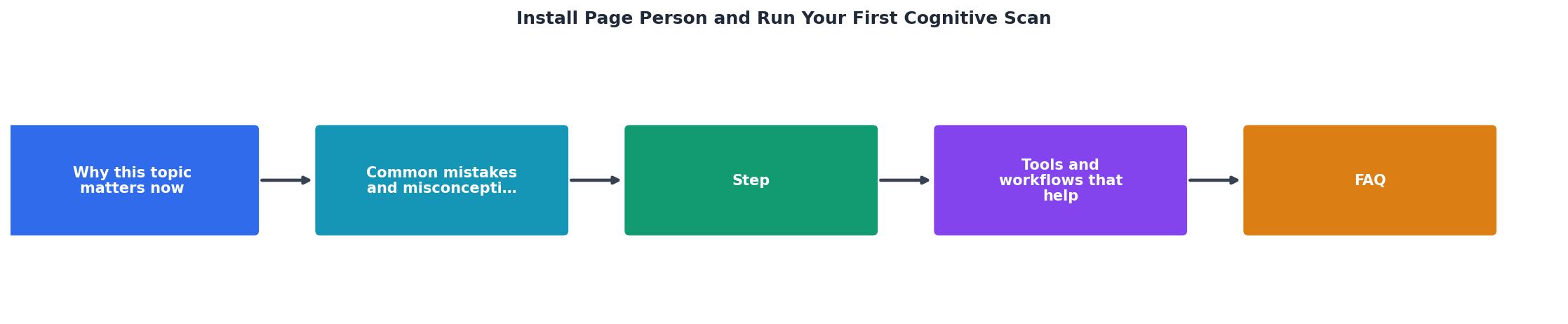
Open Chrome Web Store
Launch Google Chrome. Navigate to the Chrome Web Store. Search for "PagePerson Insights" in the search bar. The extension appears with its icon and description.
Add to Chrome
Click Add to Chrome. A permissions dialog appears. PagePerson Insights needs access to the active tab to analyze page content. Click Add extension. The icon appears in your toolbar within seconds.
Pin the Extension
Click the puzzle-piece icon in Chrome's toolbar. Find PagePerson Insights in the dropdown. Click the pin icon so it stays visible. You will use this icon every time you run a scan, so keeping it one click away saves friction.
Navigate to Your Target Page
Open the page you want to scan. This should be a live, publicly accessible page. Staging environments work too, as long as the content matches what real visitors see.
Run the Scan
Click the PagePerson Insights icon. Hit the scan button. The extension analyzes the page content, structure, and cognitive load factors. Results appear in seconds.
That is it. Five steps, no configuration files, no API keys, no onboarding wizard.
Reading Your First Scan Results

Your scan results show a breakdown of cognitive accessibility barriers found on the page. Here is what to look for:
- Severity ranking. Issues are sorted from most impactful to least. The top items are the ones bleeding the most conversions.
- Element-level targeting. Each finding points to a specific heading, paragraph, button, or section. No vague "improve your copy" advice.
- Barrier type. Findings are categorized: reading complexity, cognitive overload, unclear navigation, decision fatigue, ambiguous CTAs, and more.
- Affected visitor profiles. The scan shows which visitor types struggle most with each issue: people with ADHD, anxiety, dyslexia, low digital literacy, or simply high cognitive load from multitasking.
Example Scan: SaaS Pricing Page
The two high-severity findings in this example directly affect conversion. An ambiguous CTA like "Get Started" does not tell the visitor what happens next. A feature comparison table with 30+ cells overwhelms working memory. Fix those two items and you address the biggest cognitive barriers on the page.
What to Fix First

After your first scan, resist the urge to rewrite the entire page. Follow this priority order:
- Ambiguous CTAs. Replace vague button text with specific outcomes. "Get Started" becomes "Start My Free Trial." "Learn More" becomes "See Pricing Details." Visitors should know exactly what clicking a button does before they click it.
- Cognitive overload sections. If a section has too many choices, too much text, or too many competing visual elements, simplify. Break long paragraphs into bullet points. Reduce comparison tables to the three features that matter most.
- Jargon and reading complexity. Your internal terminology is not your visitor's vocabulary. If your scan flags complex language, rewrite at a lower reading level. Aim for grade 8 or below.
- Navigation confusion. Unclear menu labels, buried links, and inconsistent naming patterns all create friction. Each label should describe the destination, not the category.
Teams that fix the top two or three cognitive barriers on a landing page routinely see measurable conversion improvements. The fixes are usually small: a rewritten headline, a simplified table, a clearer button label. The impact is not small.
Your First Scan Checklist
First Cognitive Scan Checklist
Your progress is saved automatically in your browser.
FAQ
Frequently Asked Questions
What was the first cognitive barrier you found on your site, and how did you fix it?