Adapting Cognitive Accessibility for Google Workspace Applications
Google Workspace is everywhere. Docs, Sheets, Slides, Gmail, Meet, they're the backbone of how teams collaborate. But here's the problem: all those features, all that power, comes with overwhelming complexity for people who struggle with cognitive load, attention, or information processing. A cluttered interface with too many options, unclear hierarchy, and dense information doesn't just frustrate power users, it stops people from working effectively.

Google Workspace is everywhere. Docs, Sheets, Slides, Gmail, Meet, they're the backbone of how teams collaborate. But here's the problem: all those features, all that power, comes with overwhelming complexity for people who struggle with cognitive load, attention, or information processing. A cluttered interface with too many options, unclear hierarchy, and dense information doesn't just frustrate power users, it stops people from working effectively. Cognitive accessibility in Google Workspace isn't about dumbing down the tool; it's about making it usable for the full spectrum of human attention and processing styles.
TL;DR:- Simplify interfaces by hiding unused features, using templates, and organizing content hierarchically
- Leverage Google Workspace accessibility features like voice typing, screen readers, and dark mode to reduce cognitive friction
- Use consistent document layouts, templates, and clear labels to minimize decision fatigue
- Create accessible shared standards so teams benefit from simpler, more predictable workflows
The cognitive barriers in Google Workspace

Google Workspace ships with feature abundance. That's a strength for power users, but it's also a barrier for anyone with ADHD, anxiety, processing difficulties, or simply high cognitive load from the rest of their day.
A few concrete barriers emerge repeatedly:
- Choice overload: Google Docs has dozens of formatting options, comment modes, suggestion states, and view settings. Finding what you need means scanning menus, which burns mental energy before you even start the actual task.
- Unclear hierarchy: Information density doesn't signal what matters. Headers, body text, comments, version history, they're all competing for attention with equal visual weight.
- Context switching: Moving between Docs, Sheets, and Gmail means learning three slightly different interface patterns. The muscle memory doesn't transfer cleanly.
- Distraction by default: Notifications, suggestions, collaborator cursors, and side panels appear without invitation. Attention is fragmented by design.
- Undefined labels: Shared drives, folders, permissions, the mental model of "where does this live" is often unclear, especially for new team members.
Simplify interfaces in Google Workspace

Simplifying a Google Workspace interface is about ruthless intentionality. You can't remove features, but you can bury the ones your team doesn't use.
Start with the toolbar. In Google Docs, the toolbar can balloon into three rows of icons. Custom your toolbar to show only what your team actually uses.
- Open a Google Doc
- Click Tools → Customize the toolbar
- Remove formatting options your team doesn't need (rarely using strikethrough? Gone. Don't use outline indentation? Removed)
- Keep essential actions front and center: Bold, Italic, Link, List
Use dark mode to reduce eye strain. Extended work in Google Workspace, especially across multiple tabs and windows, creates visual fatigue that compounds cognitive load. Dark mode reduces glare and the mental load of processing bright interfaces.
- In Gmail: Settings → Appearance → Select Dark
- In Google Docs/Sheets/Slides: Settings (gear icon) → Dark mode
"Dark mode for Google ClassroomCombat eye strain with dark mode on the Google Classroom app – essential for extended studying and students with visual sensitivities.">, Accessibility features in Google for Education
Collapse side panels by default. Google Docs shows the outline, suggestions, and comments panels simultaneously. Each one competes for mental bandwidth. Hide them until needed.
- Click the X on panels you don't need open while composing
- Use View → Show outline or Show comments only when actively reviewing
Use templates to reduce cognitive load

Templates eliminate the blank-page paralysis that drains attention and motivation. Every time someone creates a new document, they face decisions: What layout? What headings? What structure? Templates skip that tax entirely.
Build team templates for recurring documents:
- Meeting notes: Pre-formatted with date, attendees, agenda items, action items section. Everyone uses the same structure. Scanning notes is instant; you know where to look for outcomes.
- Project briefs: Template includes project name, brief, success metrics, timeline, risks, and owner. New projects start with clear sections everyone expects to see. No hunting for context.
- Status reports: Weekly template with "Completed This Week," "In Progress," "Blockers," "Next Week." Consistency across team status reports makes it faster to scan what actually happened.
- Decision documents: Template includes problem statement, options considered, decision rationale, stakeholders informed, and date. Decisions are documented consistently. No searching for the logic later.
- Set up a well-formatted document with your template structure
- Click File → Save as template
- Name it clearly (e.g., "Weekly Status Report, Standard")
Utilize accessibility features in Google Workspace
Google Workspace includes effective accessibility features that reduce cognitive friction. Most teams don't know they exist.
Voice typing: Writing with your voice eliminates the motor and attention load of typing. Useful for people with ADHD, tremors, or simply high typing anxiety.
- In Google Docs: Tools → Voice typing (or press Ctrl+Shift+S)
- Speak naturally; punctuation comes through (say "period," "comma," "question mark")
- Good for drafting. You focus on ideas; the tool handles transcription
- Enable in Google Docs: Tools → Accessibility → Enable screen reader support
- Use keyboard shortcuts: Ctrl+Alt+Z to open the screen reader menu
- Click File → Open → then open in HTML format
- Some teams prefer this for drafting; switch back to rich editor for final formatting
- System level on Windows: Settings → Ease of Access → High Contrast
- Applies to all Google Workspace apps
- Ctrl+/ opens a menu of all keyboard shortcuts in Docs/Sheets
- Learn 5-10 core shortcuts; they compound into massive attention savings
Set up accessible document standards
Creating one accessible document is useful. Creating team standards is transformative.
Document structure standard:
- H1 for title (one per document)
- H2 for major sections
- H3 for subsections
- Body text at 11-14 pt (not 9 pt; smaller text creates processing friction)
- Line spacing 1.15–1.5 (single-spaced dense text is cognitively harder to parse)
- Left alignment only (justified text makes reading harder for dyslexic readers)
- Lists instead of paragraphs when listing items (your brain processes list structure faster)
- Never communicate information by color alone (red = urgent is inaccessible to colorblind readers and people skimming quickly)
- Use text labels: "URGENT, Action needed by Friday" instead of red highlighting alone
- Contrast ratio of at least 4.5:1 for readable text
- Shared Drive names are explicit: "Project: [Name]" not "Q4 Stuff"
- Folder structure mirrors project timeline: "01-Planning," "02-Discovery," "03-Execution"
- File names include date and version: "Meeting Notes 2026-02-15 v2" not "notes_final_actualfinal"
- Clearly state at the top: "View only," "Comment," or "Edit" permissions
- No surprises about who can do what
Process for implementing cognitive accessibility
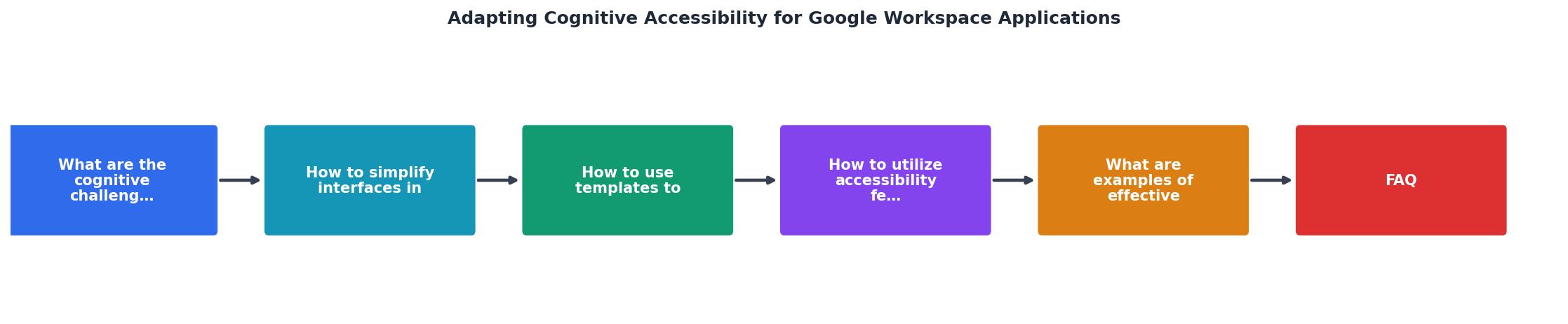
Real accessibility happens through a process, not a one-time audit.
Audit current workflows: Pick your three most-used document types (status reports, meeting notes, project briefs). Are they consistent? Do they use the same headings, structure, formatting? Or is each one an improvisation?
Design a standard: Create one template per document type. Involve 2-3 people who actually use that document. They'll catch what matters and what doesn't.
Test and iterate: Use the templates for two weeks. Ask: Did this make writing faster? Did reading others' documents get clearer? What felt rigid or confusing?
Formalize and communicate: When the template works, share it prominently. Add a style guide. Document the "why" behind each structural choice. New team members then learn the standard, not just copy random examples.
Measure: Track time-to-completion for templated documents. Compare to pre-template baseline. You should see 15-30% time savings within a month.
Practical checklist for cognitive accessibility
Cognitive Accessibility in Google Workspace
Your progress is saved automatically in your browser.
Interactive accessibility audit tool
To help you assess your current Google Workspace setup, here's an interactive dashboard showing how accessibility improvements compound across your team.
Your Workspace Accessibility Score
This dashboard shows a typical team's starting point. Most organizations have decent interface simplification but lag behind on templates and accessibility features. The good news: each improvement compounds. Enabling templates cuts document creation time by 20-30%. Adding accessibility features reduces cognitive load even more. The combined effect turns Workspace from an overwhelming tool into a clear, predictable system.
FAQ
Frequently Asked Questions
Cognitive accessibility isn't a feature you enable once. It's a practice: simplifying, templating, and building consistency across how your team works. Google Workspace is effective, but power without clarity creates friction. Start with one template, enable dark mode, and measure the impact. Small changes compound into a workspace where people can focus on the work, not the tool.
Additional Resources
- Accessibility features in Google for Education - Cognitive and spoken feedback Tools that enable students to adjust sensory inputs and outputs, such as voice control, verbal feedback, and color shifts
- Google Workspace admin guide to accessibility - To meet the accessibility needs of your users, you can change Gmail and Chrome OS settings in your Google Admin console for all or just a specific set of users.
- Accessibility Features with Google Workspace for Education - Google Workspace for Education offers specialized accessibility tools ensuring seamless integration with existing educational technologies, ...
Need Help with Accessibility?
Improve your site's accessibility and conversion rates with our AI-powered analysis.
Get Started