Cognitive Accessibility Guide for Slack Integrations
Slack integrations are everywhere, from deployment bots to standup reminders to approval workflows. Most of them work fine for the person who built them. For everyone else, they dump walls of text into channels, fire notifications at random intervals, and use jargon that only makes sense if you already know the answer. This guide walks through concrete steps to make your Slack integrations cognitively accessible so every team member can actually use them without burning mental energy they need for real work.

Slack integrations are everywhere, from deployment bots to standup reminders to approval workflows. Most of them work fine for the person who built them. For everyone else, they dump walls of text into channels, fire notifications at random intervals, and use jargon that only makes sense if you already know the answer. This guide walks through concrete steps to make your Slack integrations cognitively accessible so every team member can actually use them without burning mental energy they need for real work.

- Simplify bot message structure: one action per message, plain language, consistent formatting.
- Reduce notification noise by routing messages to the right channels with appropriate urgency levels.
- Test integrations with real users who have different cognitive needs, not just the developer who built them.
- Use Slack's built-in accessibility features (keyboard shortcuts, screen reader support) as your baseline.
Why Slack integrations fail cognitively
Most Slack bots and integrations are built by developers solving their own problem. The bot works. It sends data. Job done. But cognitive accessibility means the person receiving that message can understand it, decide what to do, and act on it without excessive mental effort.
Three things go wrong repeatedly:
- Information overload in a single message. A CI/CD bot that dumps 40 lines of build output into a channel forces readers to parse irrelevant noise to find the one line that matters.
- Ambiguous calls to action. A message says "Review needed" with a link, but does not say what to review, how urgent it is, or what happens if you ignore it.
- Notification fatigue. When everything pings, nothing pings. People with ADHD, anxiety, or high cognitive load stop reading bot messages entirely.
That number is not surprising if you have ever watched a busy Slack workspace for an hour. The fix is not fewer integrations. It is smarter ones.
Common cognitive barriers

Before fixing anything, name the specific barriers your integrations create. Here are the ones that show up most often in design audits:
- Dense formatting. Monospaced code blocks, JSON payloads, or raw log output dropped into a channel with no summary.
- Inconsistent message patterns. One bot uses emoji for status, another uses colored attachments, a third uses plain text. Users cannot build a mental model.
- Missing context. A message references a ticket number but does not include the ticket title. The reader has to context-switch to another tool.
- No clear hierarchy. The most important piece of information (what broke, who needs to act, what the deadline is) is buried in the middle of the message.
- Overuse of @mentions and @here. Every message feels urgent, so none of them do.
That low percentage means most bot messages leave the reader guessing. Fixing this is straightforward once you know the patterns.
Simplify bot message structure

A well-structured bot message follows a predictable pattern. Readers learn the pattern once, then scan every future message in seconds. Here is a format that works:
- Status line. One short sentence or emoji + label. Example:
:white_check_mark: Deploy succeededor:rotating_light: Build failed. - Context line. What this relates to. Example:
Project: billing-service | Branch: main | PR #482. - Action line. What the reader should do next, if anything. Example:
No action neededorReview required by @design-team before 3 PM. - Details (collapsed). Use Slack's
mrkdwncollapsible sections or thread replies for logs, diffs, or verbose output. Keep the main message short.
The following diagram shows the simplified flow from integration event to user action:
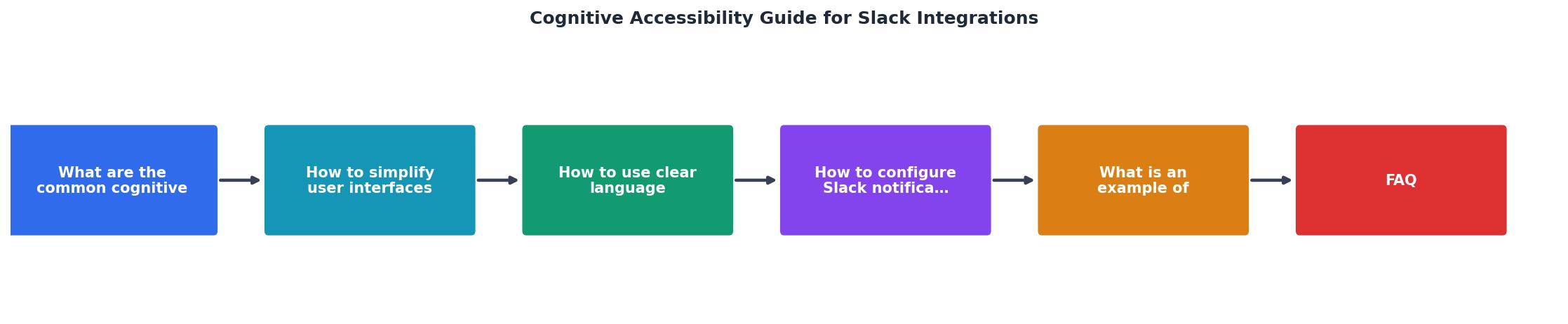
Follow the steps in the diagram: Identify Event, Format Message, Route to Channel, Deliver with Context, Enable Action. Each step reduces the cognitive work the reader has to do at the end of the chain.
Write clear bot language
Slack bots are not documentation. They are interruptions. Every word in a bot message should earn its place.
Rules for bot copy:
- Use active voice. "Deploy completed" not "The deployment has been completed."
- Name the thing. "billing-service deploy failed" not "A deploy failed."
- State urgency explicitly. "Action required today" or "FYI only, no action needed."
- Avoid abbreviations unless your entire team uses them daily.
PRis fine.LGTM w/ nits on the RFC re: SLAis not. - Skip pleasantries. Bots do not need to say "Hi team!" or "Hope you're having a great day!"
| Typical Bot Message | Accessible Bot Message |
|---|---|
| "Build #4821 finished. See details." | ":white_check_mark: Build passed - billing-service (main). No action needed." |
| "New ticket assigned to you" | "Ticket BIL-302 assigned: 'Fix invoice rounding error'. Due: Friday." |
| "Reminder: standup" | "Standup in 10 min - #team-standup. Post async update if you can't attend." |
| "Error occurred in production" | ":rotating_light: 500 errors spiking on /checkout (billing-service). On-call: @jamie. Runbook: [link]" |
"Visit Slack's list of keyboard shortcuts to help you take actions quickly.">, Accessibility in Slack
Configure notifications for focus

Notification management is half the cognitive accessibility equation. A perfectly written message still causes harm if it arrives at the wrong time, in the wrong channel, with the wrong urgency.
Channel routing strategy:
- #alerts-critical for production incidents. Use
@hereor@channelonly here. - #alerts-info for non-urgent system updates. No @mentions. People check when they choose.
- #deploys for deployment status. Muted by default for most team members.
- #standup-bot for async standups. Threaded replies keep the channel scannable.
- Immediate (production down, security incident): @mention on-call, post to #alerts-critical.
- Same-day (review needed, approval pending): post to relevant channel, no @mention.
- Informational (deploy succeeded, weekly report): post to low-priority channel, no notification trigger.
@here more than once a day in any channel, you have a routing problem, not a communication problem. Fix the routing first.Teams that implement tiered notifications consistently report faster response to real incidents because people stop ignoring the noise.
Example: accessible deploy bot
Here is a concrete example of how one team restructured their deploy bot for cognitive accessibility. The dashboard below shows the before-and-after metrics from a team of 12 designers and developers who redesigned their CI/CD Slack integration using the principles in this guide:
Deploy Bot Redesign Results
Tools like PagePerson Insights can help you identify similar cognitive barriers on your web-based dashboards and documentation pages that link out from Slack messages. If the landing page a bot links to is itself confusing, fixing the Slack message only solves half the problem.
Slack Integration Cognitive Accessibility Checklist
Your progress is saved automatically in your browser.
FAQ
Frequently Asked Questions
mrkdwn formatting renders correctly for assistive technology users.Additional Resources
- Accessibility in Slack - Visit Slack's list of keyboard shortcuts to help you take actions quickly. · Use a screen reader to navigate conversations, read messages, and access information ...
- Automated Accessibility Testing at Slack - We simplified the process for developers to add accessibility checks, ensured test results were easy to interpret, provided clear documentation, ...
- Slack Integrations: Apps, Plugins & Connectors - Connect Slack with third-party apps and tools to streamline workflows, surface key actions, and build custom integrations that boost productivity.
Need Help with Accessibility?
Improve your site's accessibility and conversion rates with our AI-powered analysis.
Get Started