Using PagePerson Insights for Cognitive Accessibility Audits
Most accessibility audits stop at color contrast ratios and missing alt text. The cognitive layer, where visitors with ADHD, dyslexia, anxiety, or low digital literacy actually fail to understand a page, stays invisible. Compliance leads know this gap exists, but tooling has lagged behind the standards. This guide walks through a complete cognitive accessibility audit using PagePerson Insights, from setup to a compliance-ready report your legal team and regulators can accept.

Most accessibility audits stop at color contrast ratios and missing alt text. The cognitive layer, where visitors with ADHD, dyslexia, anxiety, or low digital literacy actually fail to understand a page, stays invisible. Compliance leads know this gap exists, but tooling has lagged behind the standards. This guide walks through a complete cognitive accessibility audit using PagePerson Insights, from setup to a compliance-ready report your legal team and regulators can accept.

- PagePerson Insights identifies cognitive barriers that traditional WCAG checkers miss: reading complexity, navigation confusion, information overload, and unclear calls to action.
- A structured audit process (scope, scan, interpret, report) turns subjective "this page is confusing" complaints into documented, actionable findings.
- Audit data maps directly to WCAG 2.2 cognitive guidance and European Accessibility Act requirements, making compliance reporting straightforward.
Why cognitive audits matter now
The European Accessibility Act enforcement deadline of June 2025 has already passed. Section 508 refresh discussions in the US increasingly reference cognitive criteria. WCAG 2.2 added success criteria like 3.3.7 (Redundant Entry) and 3.3.8 (Accessible Authentication) that directly target cognitive load. Regulators are no longer satisfied with a clean Lighthouse score and a VPAT that only covers visual and motor categories.
Yet most audit workflows still rely on automated scanners built for HTML semantics, not human comprehension. A page can pass every axe-core rule and still be incomprehensible to someone with a processing speed disability or situational cognitive impairment.
That number is not hypothetical. Cognitive disabilities are the most common disability category globally, and situational impairments (stress, fatigue, multitasking, unfamiliar language) affect nearly everyone at some point.
"The accessibility issues addressed in this guidance are essential for people with certain disabilities to be able to use digital technology.">, Cognitive Accessibility at W3C
Key features for audits

PagePerson Insights runs as a Chrome extension. Install it, navigate to any page, and activate the scan. Here is what it evaluates that other tools do not:
- Reading complexity analysis scores content against established readability indices, flagging paragraphs that exceed the comprehension level of your target audience.
- Navigation clarity checks whether users can predict where links and buttons lead, and whether the page structure follows a logical information hierarchy.
- Cognitive load indicators identify pages that present too many choices, too much text, or competing visual elements simultaneously.
- Call-to-action clarity evaluates whether the primary action on each page is obvious and unambiguous.
- Form comprehension flags input fields with unclear labels, missing instructions, or error messages that do not explain what went wrong.
Combining PagePerson Insights with a standard automated checker like axe or WAVE covers roughly 85% of testable WCAG 2.2 criteria, including the cognitive layer that automated-only approaches miss entirely.
Step-by-step audit process

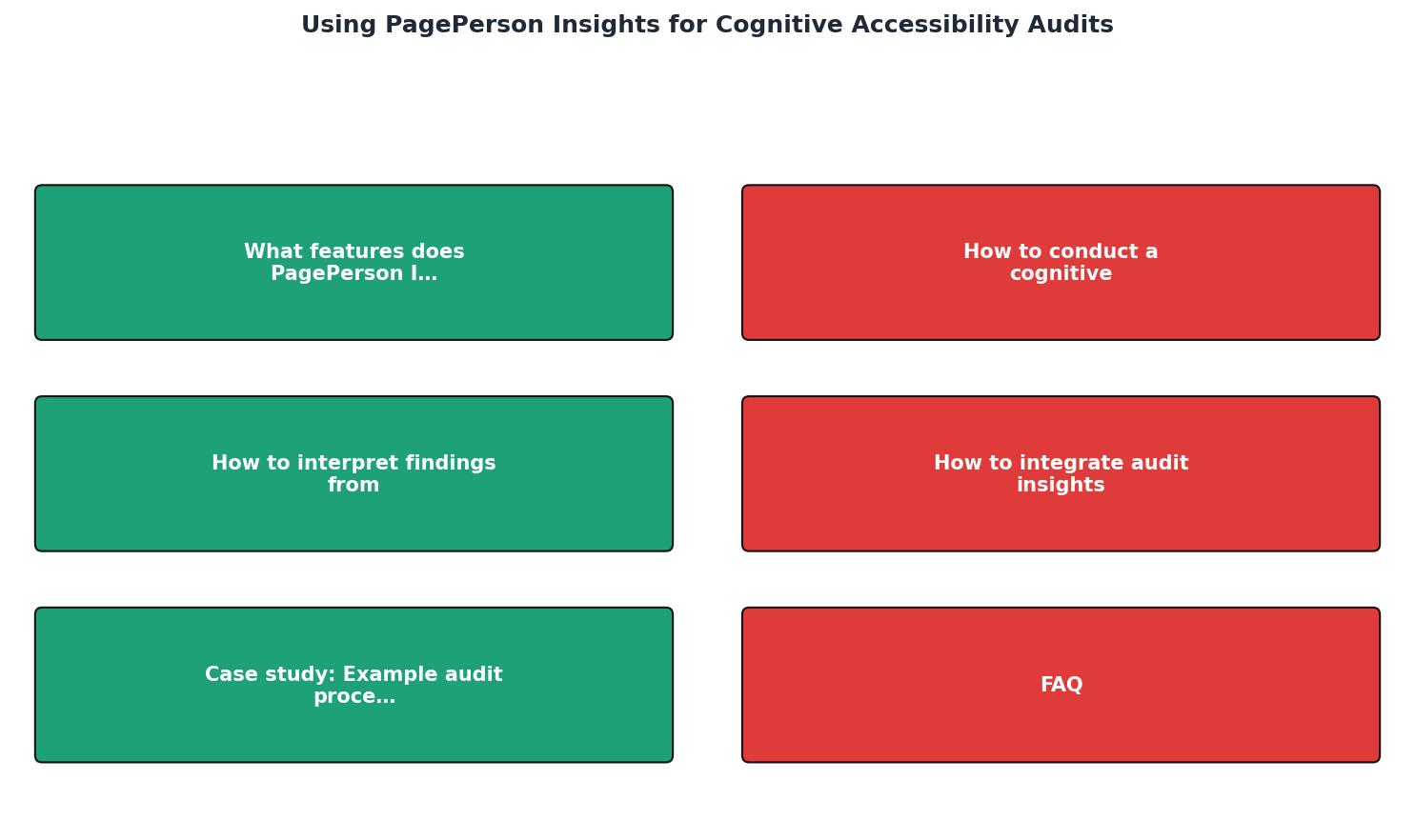
A cognitive accessibility audit follows five stages. Each one produces a documented artifact.
1. Define scope
Pick the pages and user flows that matter most. For compliance purposes, prioritize:
- Homepage and primary landing pages
- Registration, login, and authentication flows
- Checkout or primary conversion funnel
- Help, support, and contact pages
- Any page receiving high traffic or high bounce rates
2. Run the scan
Open each scoped page in Chrome. Activate PagePerson Insights. The extension analyzes the live DOM, not a cached snapshot, so you see exactly what visitors see. For each page:
- Record the overall cognitive accessibility score.
- Note each flagged issue, its severity (critical, major, minor), and the affected page element.
- Screenshot the highlighted problem areas. PagePerson Insights overlays indicators directly on the page, making screenshots self-explanatory.
3. Interpret findings
Raw scan data needs context. For each flagged issue, answer three questions:
- Who is affected? A reading-level flag at Grade 12 affects users with dyslexia, non-native speakers, and anyone under cognitive load. A confusing navigation structure affects users with ADHD and executive function challenges.
- What is the impact? Can the user still complete the task, or is the barrier a blocker? A confusing label is a friction point. A form that rejects valid input without explanation is a blocker.
- Which standard applies? Map the finding to a WCAG 2.2 success criterion (e.g., 3.3.2 Labels or Instructions) or a W3C COGA pattern (e.g., "Use clear and understandable content").
4. Prioritize and recommend
Sort findings by severity and impact. Group them into three tiers:
- Critical items that block task completion for cognitive disability users. Fix before the next release.
- Major items that cause significant confusion or frustration. Schedule within the current quarter.
- Minor items that reduce clarity but do not prevent task completion. Add to the backlog.
5. Compile the report
The final deliverable is a compliance report. Structure it so that legal, product, and engineering teams can each find what they need.
Integrating into compliance reports

A compliance report built from PagePerson Insights data should contain these sections:
- Executive summary with the total number of pages audited, the breakdown of critical/major/minor findings, and the overall cognitive accessibility posture.
- Methodology describing the tools used (PagePerson Insights version, browser version, date of scan), the scope, and the standards referenced (WCAG 2.2, W3C COGA, EAA).
- Findings table with columns for URL, issue description, severity, affected user groups, applicable standard, screenshot reference, and recommended fix.
- Remediation timeline mapping each critical and major finding to a target fix date and responsible team.
- Appendix with full screenshots and raw scan exports.
The following interactive card shows what a typical audit summary looks like after scanning a mid-size e-commerce site with 25 key pages:
Cognitive Audit Summary
Case study: Healthcare portal audit
A regional healthcare provider needed to meet European Accessibility Act requirements for their patient portal. The portal handled appointment booking, test result viewing, and prescription refills. Traditional automated scans returned only 4 issues (missing form labels and one low-contrast link).
PagePerson Insights identified 23 additional cognitive barriers:
- The appointment booking flow used medical jargon in dropdown labels ("Ambulatory Consultation" instead of "Doctor Visit").
- Error messages on the login page said "Authentication failed" with no guidance on what to try next.
- The test results page displayed 14 data points simultaneously with no visual hierarchy or grouping.
- The prescription refill form required users to remember their prescription ID, a 12-digit number, with no option to look it up.
The patient portal saw a 60% drop in support tickets related to "I can't find" and "I don't understand" categories within 30 days of deploying the fixes.
Compliance report template
Use this checklist as a template when compiling your audit report. Each item corresponds to a required section or action.
Cognitive Accessibility Audit Report Checklist
Your progress is saved automatically in your browser.
| Traditional WCAG Scanner | PagePerson Insights Cognitive Audit |
|---|---|
| Checks HTML semantics and ARIA | Analyzes reading complexity and comprehension |
| Flags missing alt text and labels | Flags unclear labels and confusing instructions |
| Color contrast ratios | Cognitive load and information overload |
| Automated, no user-context | Maps findings to affected user groups |
| VPAT-ready output | Compliance report with WCAG + COGA mapping |
FAQ
Frequently Asked Questions
Additional Resources
- The State of Web Accessibility for People with Cognitive ... - In order to address the urgent needs associated with web accessibility for people with cognitive disabilities, research partners will develop co-design labs to ...
- Cognitive Accessibility at W3C - This page introduces: accessibility for people with cognitive and learning disabilities (“cognitive accessibility”); existing standards from the World Wide ...
- Introduction to Cognitive Disability and Accessibility Testing - Read an overview about how the web can be inaccessible for people with cognitive disabilities and how accessibility testing can help.
Need Help with Accessibility?
Improve your site's accessibility and conversion rates with our AI-powered analysis.
Get Started